DOCS / TUTORIALS
Design with the assistant
AI creditIn this tutorial, you ask the assistant to build a fitted shelf unit for an alcove. You learn how to write a request, how to see each change the assistant makes, and how to undo a request.
You need about 10 minutes. Do Your first bookcase first.
AI help uses pay-as-you-go credit, and each request uses some of it. For the price of each model, see Pricing or click pricing in the assistant panel. The Terms tell you how credit works.
Start a new project#
- Click File.
- Move the pointer to New.
- Click Furniture design….
- In Name, type
Alcove shelves. - Click Create.
The assistant panel is on the right of the window. If you cannot see it, click ◀ AI at the right edge of the view.
Ask for the shelf unit#
Give the assistant the sizes, the material and the clearances. Exact numbers give a better result than words such as "big" or "small".
-
Click the box Ask the assistant… at the bottom of the assistant panel.
-
Type this request:
Build a fitted shelf unit for an alcove 1200 mm wide, 450 mm deep and 2400 mm high. Use 18 mm birch plywood with five fixed shelves, and leave 10 mm clearance at each side and the top. -
Click Send.
The assistant works on the model. Each command that it runs shows as a card with ✓ in the chat. More than three commands in a row show as one group: click the group to open it. When the assistant stops, it writes a reply.
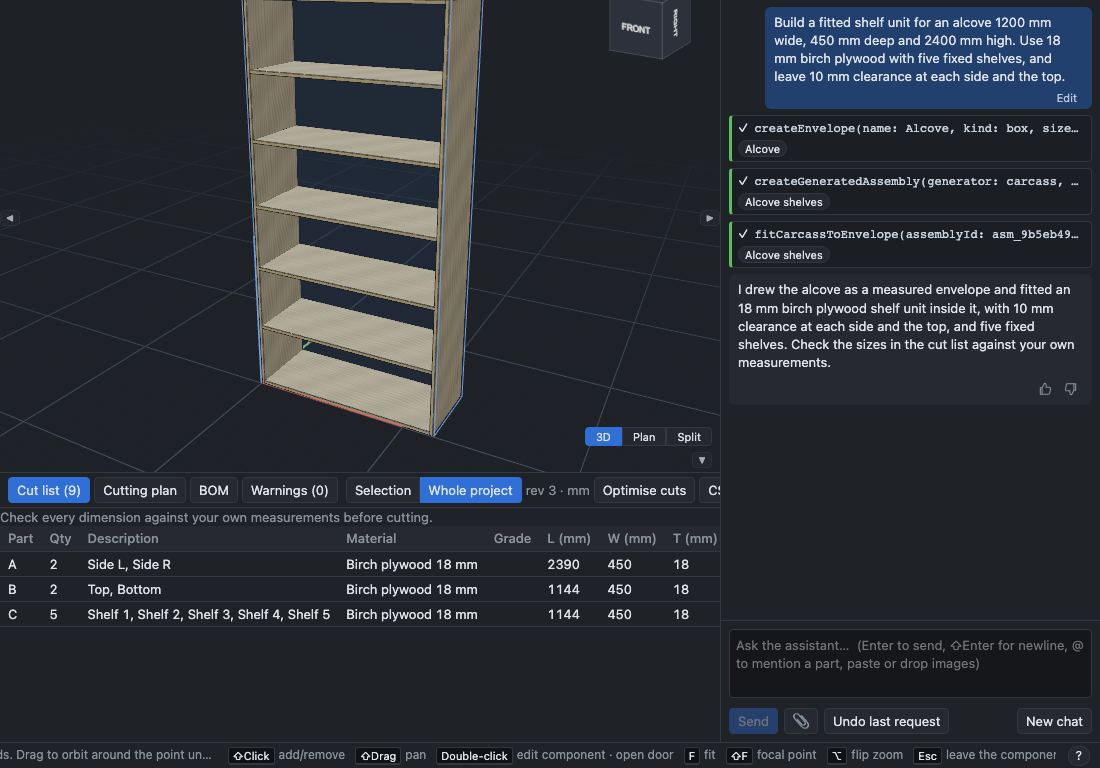
The assistant's reply and its commands can be different from the picture. In this example, it draws the alcove as a measured envelope. Then it makes a shelf unit with the carcass generator and fits the unit into the alcove.
Examine what the assistant did#
- Click a name below a command card, for example Alcove shelves. KerfCraft selects it and moves the view to it.
- Click a command card to see the exact values that the assistant used.
- Click the Cut list tab. Read the parts and their sizes.
The parts are normal parts. You can change them by hand, the same as parts that you draw. Check every dimension against your own measurements before cutting.
Undo the request#
- Click Undo last request below the box.
The shelf unit and the alcove go away, and the cut list is empty. The chat shows a note, for example "Undid 3 changes from the last request."
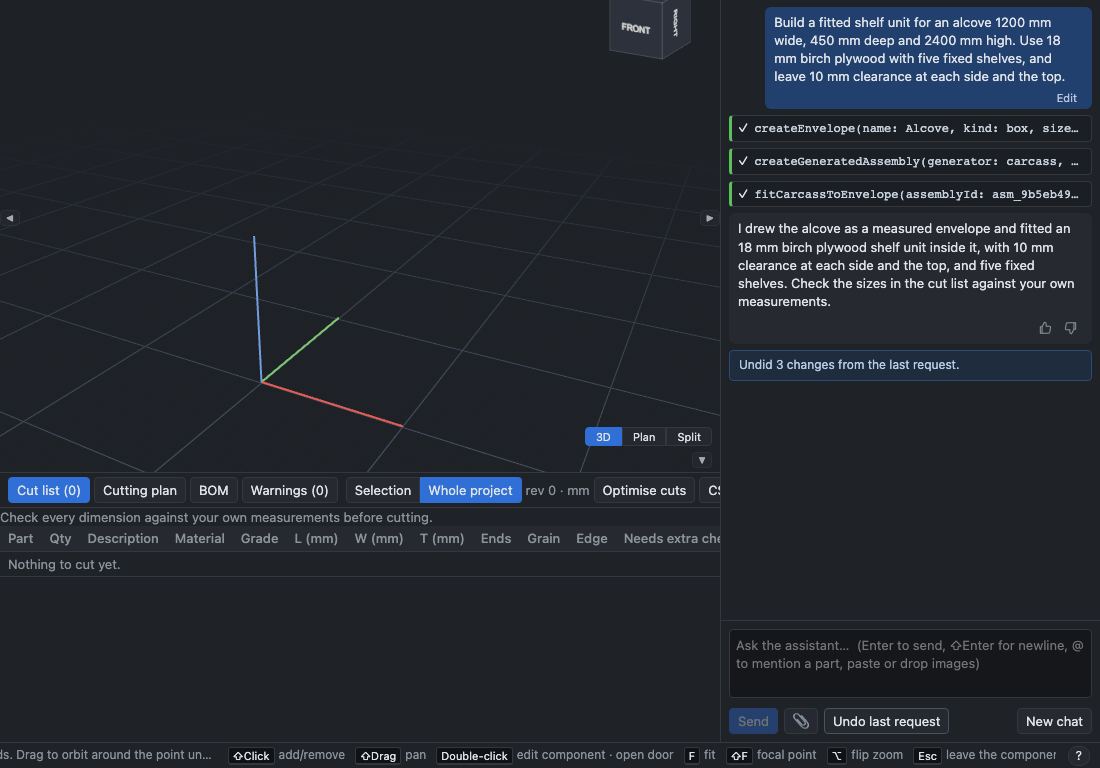
Undo last request removes every change from the last request in one step. The conversation stays, so you can ask again with different words.
Change the request and run it again#
- Click Edit below your message.
- Change
five fixed shelvestofour fixed shelves. - Click Save and re-run.
- Click OK in the browser message.
The browser message tells you that KerfCraft undoes the assistant's changes since that message and removes the later conversation. Then the assistant runs the changed request.
What you learned#
- You ask for a design in plain words, with exact sizes.
- Each change from the assistant shows as a command card that you can open.
- Undo last request removes all the changes from one request.
- Edit on your message changes the request and runs it again.
To start a new conversation, click New chat, then click OK in the browser message. Your design does not change.